Quote IQ
Every quote request arrives ready to quote.
Quote IQ puts a smart request-for-quote form on your website, reads what the customer wrote, asks them for anything that’s missing, and routes the finished request to the right team. Your estimators start with a complete request, a written brief and a risk score, not an email thread.
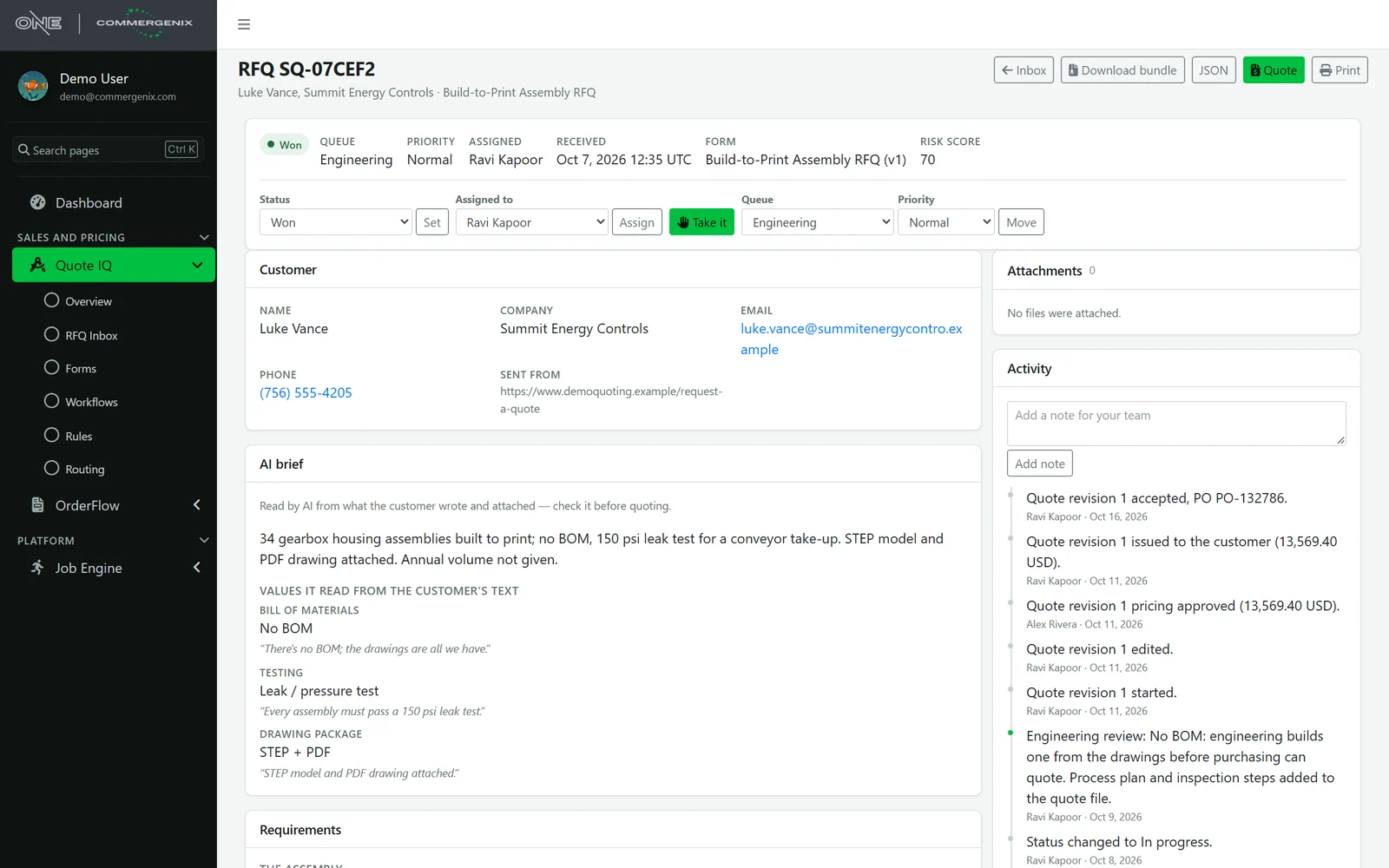
The customer writes a paragraph. Your estimator gets the facts.
AI reads the customer’s own words, your rules score the job, and anything still missing goes back to the customer as one short question.
“Quote 34 pcs of our gearbox housing assembly (AS-11414 rev A) for a conveyor take-up. There’s no BOM; the drawings are all we have. Every assembly must pass a 150 psi leak test. STEP model and PDF drawing attached.”
- Bill of materials
- No BOM
- Testing
- Leak / pressure test
- Drawing package
- STEP + PDF
- Your rules
- Risk 70 · route to Engineering
Missing: annual volume. Quote IQ asked the customer, and they answered “about 305 a year”.
Most RFQs can’t be quoted the day they arrive.
The first reply to most quote requests is a list of questions, and the clock stops until the customer answers.
-
Half the facts are missing
No quantity, no annual volume, no material spec. Someone has to write back and wait before any real quoting starts.
-
The details hide in prose
“No BOM,” “must pass a leak test,” “line down”: the facts that change a quote are buried in a paragraph someone has to read carefully.
-
Requests land in the wrong inbox
A build-to-print assembly that needs engineering sits in the sales queue for two days before anyone notices.
From the website form to the won order.
The workflow prepares each request. Quoting, pricing approval and sending stay with your team.
-
Your form, on your site
One line of script puts your RFQ form on any page. Customers answer typed questions and attach drawings and models.
-
AI reads their words
It pulls the facts out of what the customer wrote and summarizes the request for the estimator, quoting the text each value came from.
-
Your rules, your routing
Decision tables score risk and readiness. Anything the rules still need goes back to the customer as a short follow-up question.
-
Price it, approve it, send it
Lines with cost and margin, a pricing approval, and the quote issued to the customer, all on the RFQ’s record.
-
Order on the PO
Record the customer’s PO and convert the quote into an order, sent on to your ERP.
A quote form that asks the right questions.
Build forms for each kind of work you quote, such as machined parts, assemblies or sheet metal, with sections, typed fields and file uploads. Drop one on your site with a single script tag.
- Drawings welcome: STEP, IGES, DWG, DXF, PDF and images upload with the request.
- Checked twice: required fields and formats are checked in the browser and again on the server, with spam protection built in.
- Versioned: every request records the form version it was submitted on.
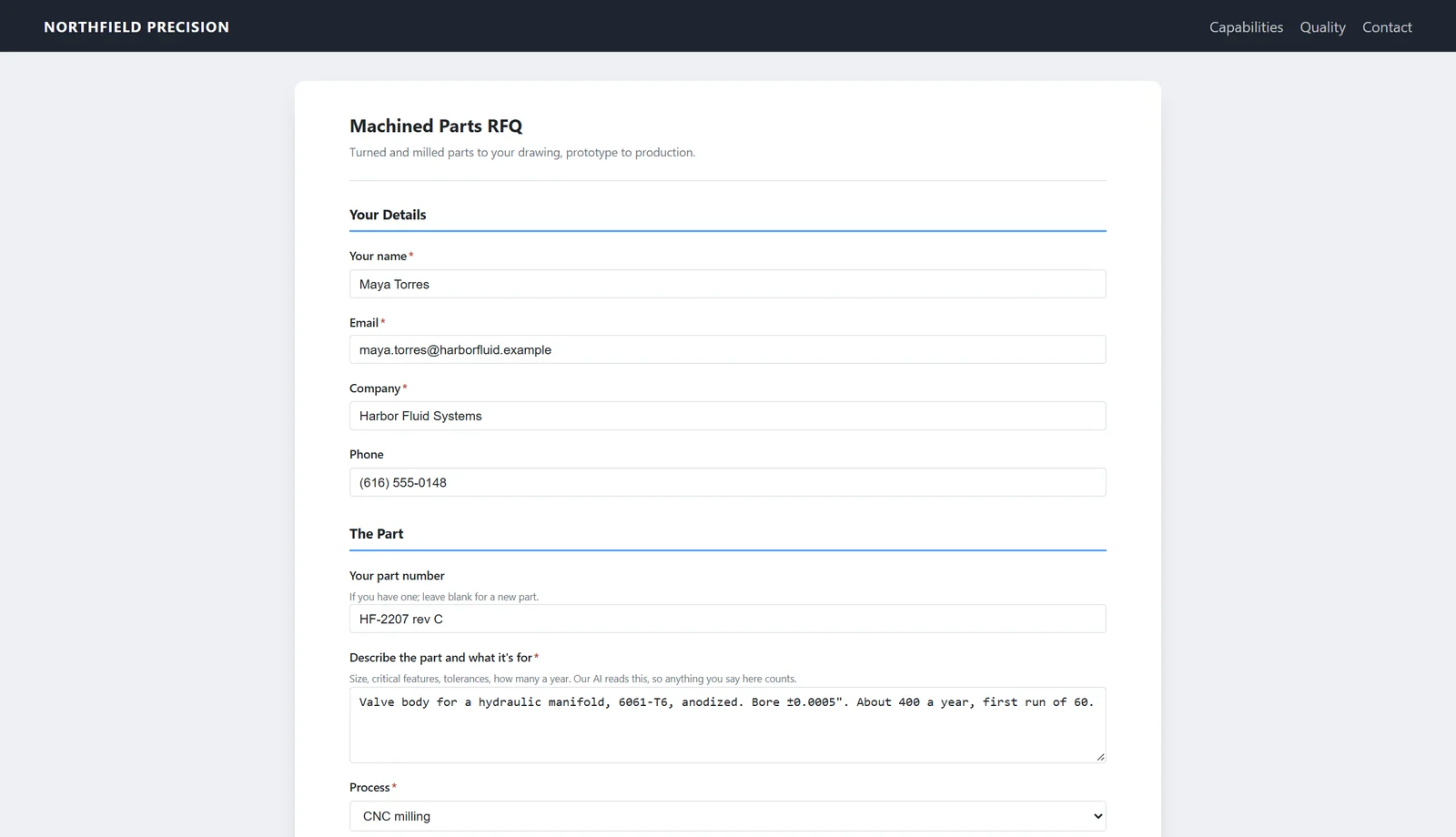
Missing details get asked for, automatically.
When your rules need a fact the customer didn’t give, Quote IQ asks for it: right on the form, or in an email with a link back to their request. The answer comes back typed and lands on the RFQ, and the workflow carries on.
- Asked once, in plain words: questions come from your rules, so you only ask what changes the quote.
- A confirmation email on every request, and a reminder with the link if questions go unanswered.
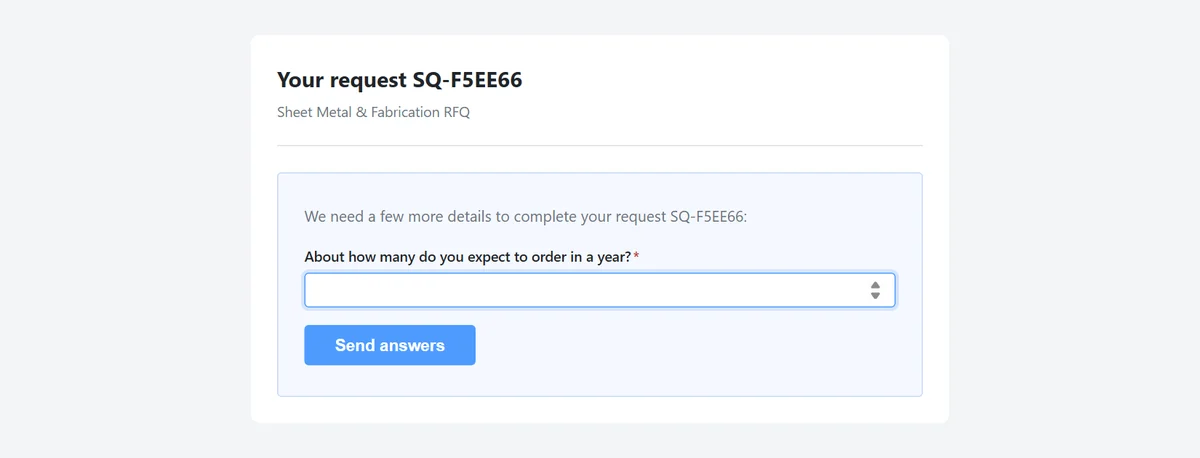
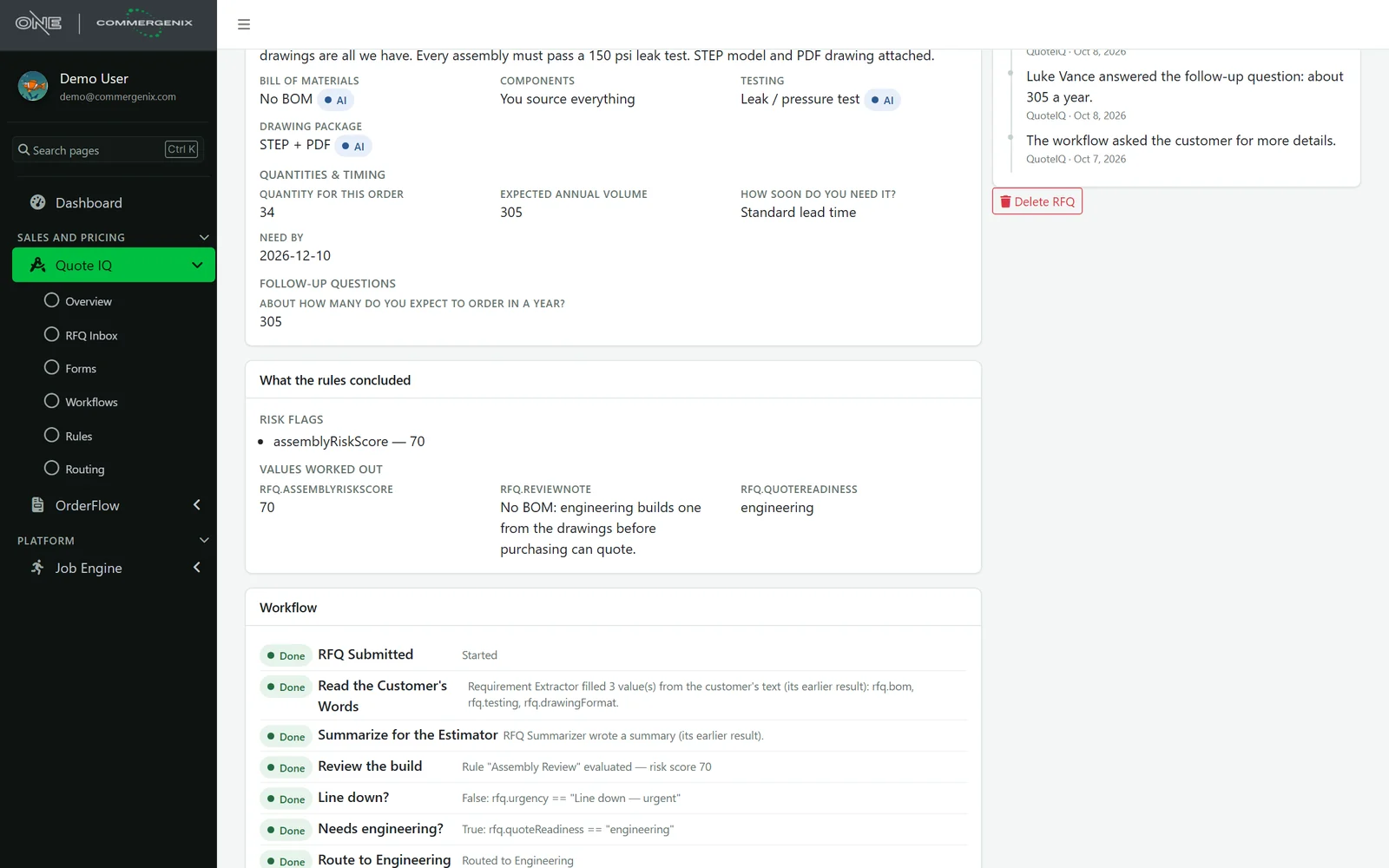
One inbox, sorted into the queues that do the work.
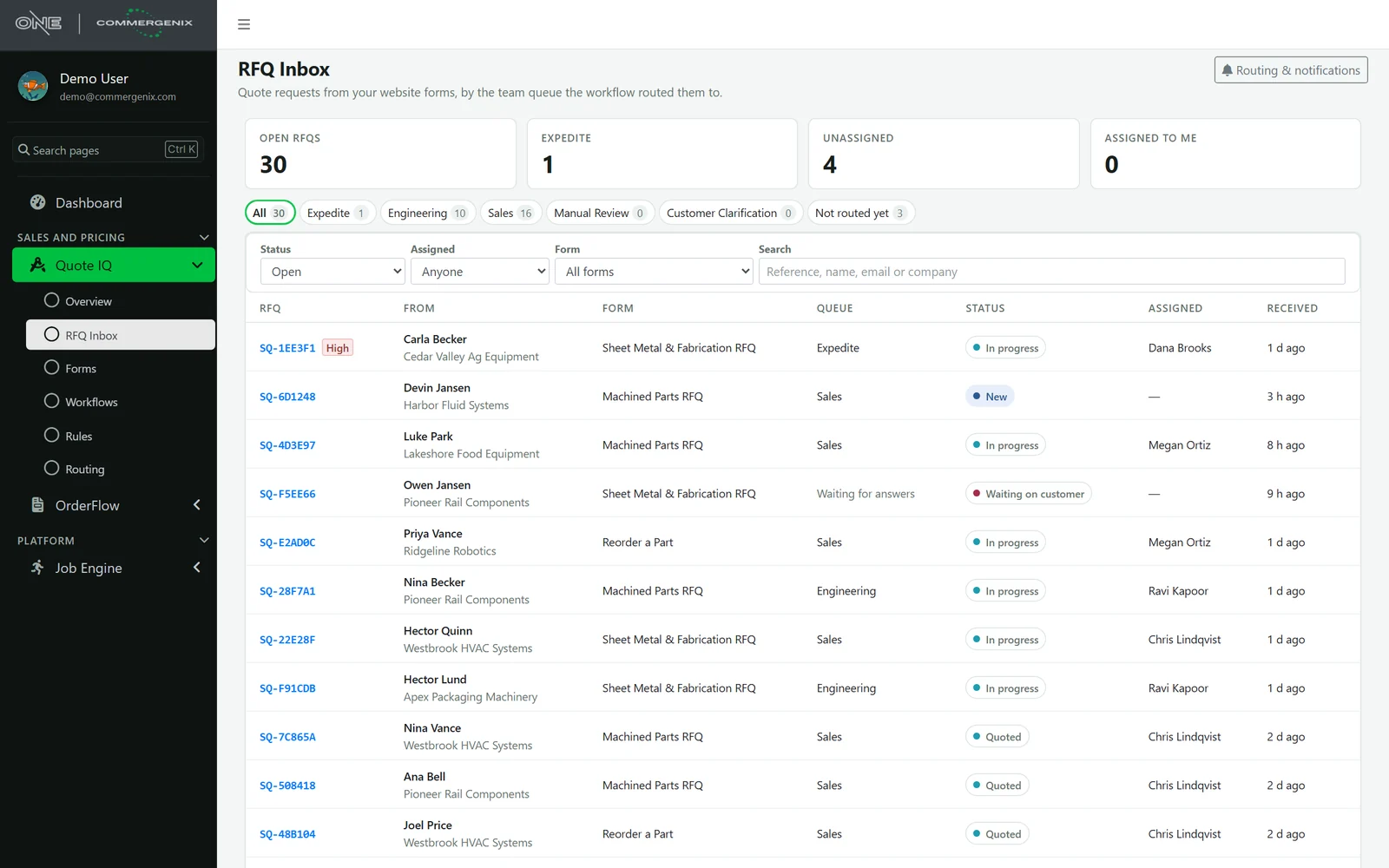
Every request lands in the queue its workflow chose (Sales, Engineering or Expedite), with a priority, an owner and a status. Take one, assign one, move one, and see at a glance what’s waiting on the customer.
- Notifications per queue, in the app and by email, so the Engineering team hears about engineering work.
- The whole history: notes, status changes, questions, quotes and the PO, on one timeline.
- Take it with you: download a request as a bundle with its files, or print it.
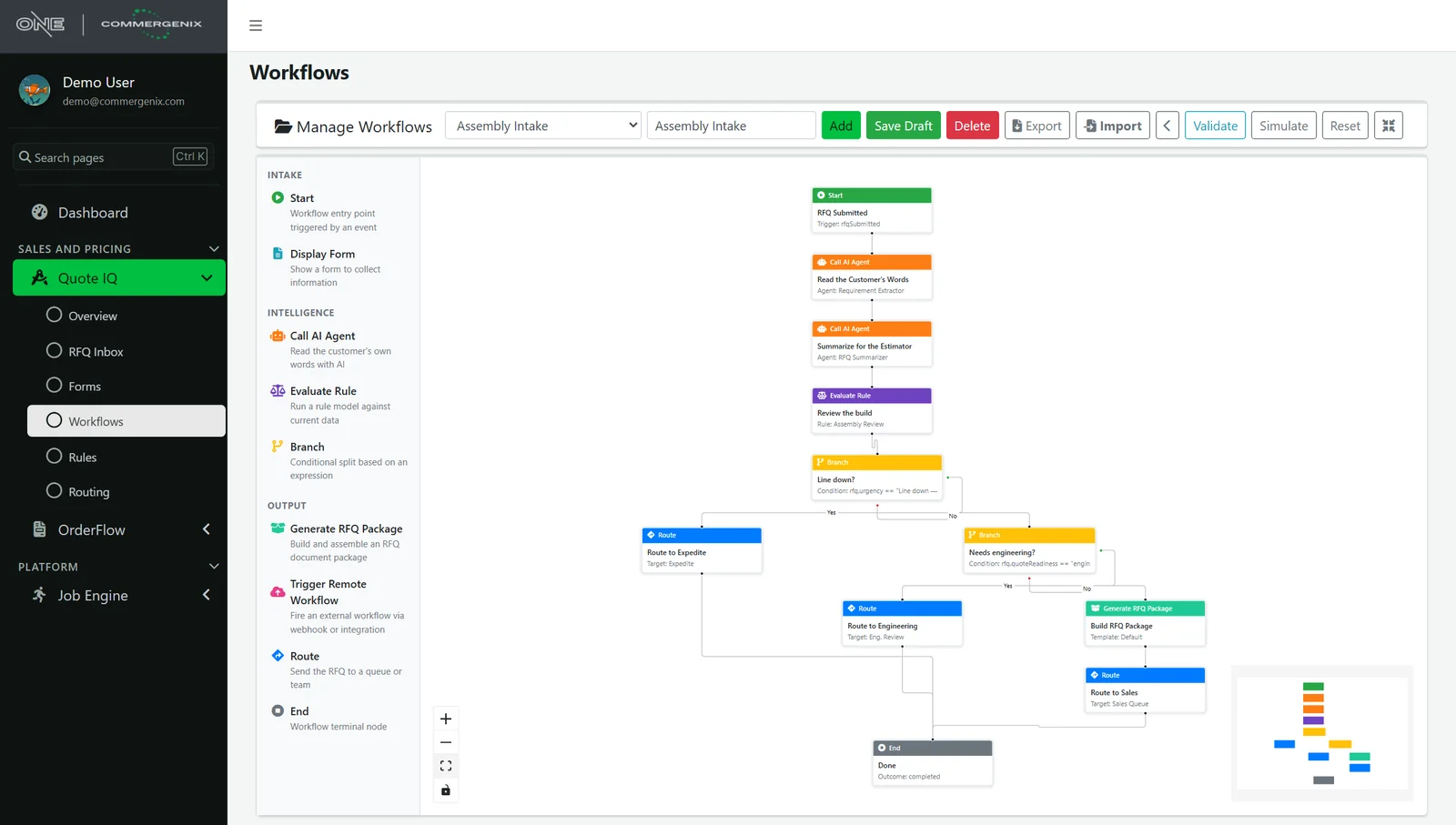
Draw how a request should flow.
Lay out the steps on a canvas: AI reads the request, rules evaluate it, branches decide, and routes send it to a queue. Add a step that builds the RFQ package or calls your other systems by webhook. Validate and simulate before you publish.
- Line down? Expedite. Build-to-print with no BOM? Engineering. Everything else goes to Sales.
- Signed webhooks hand a request to the systems you already run.
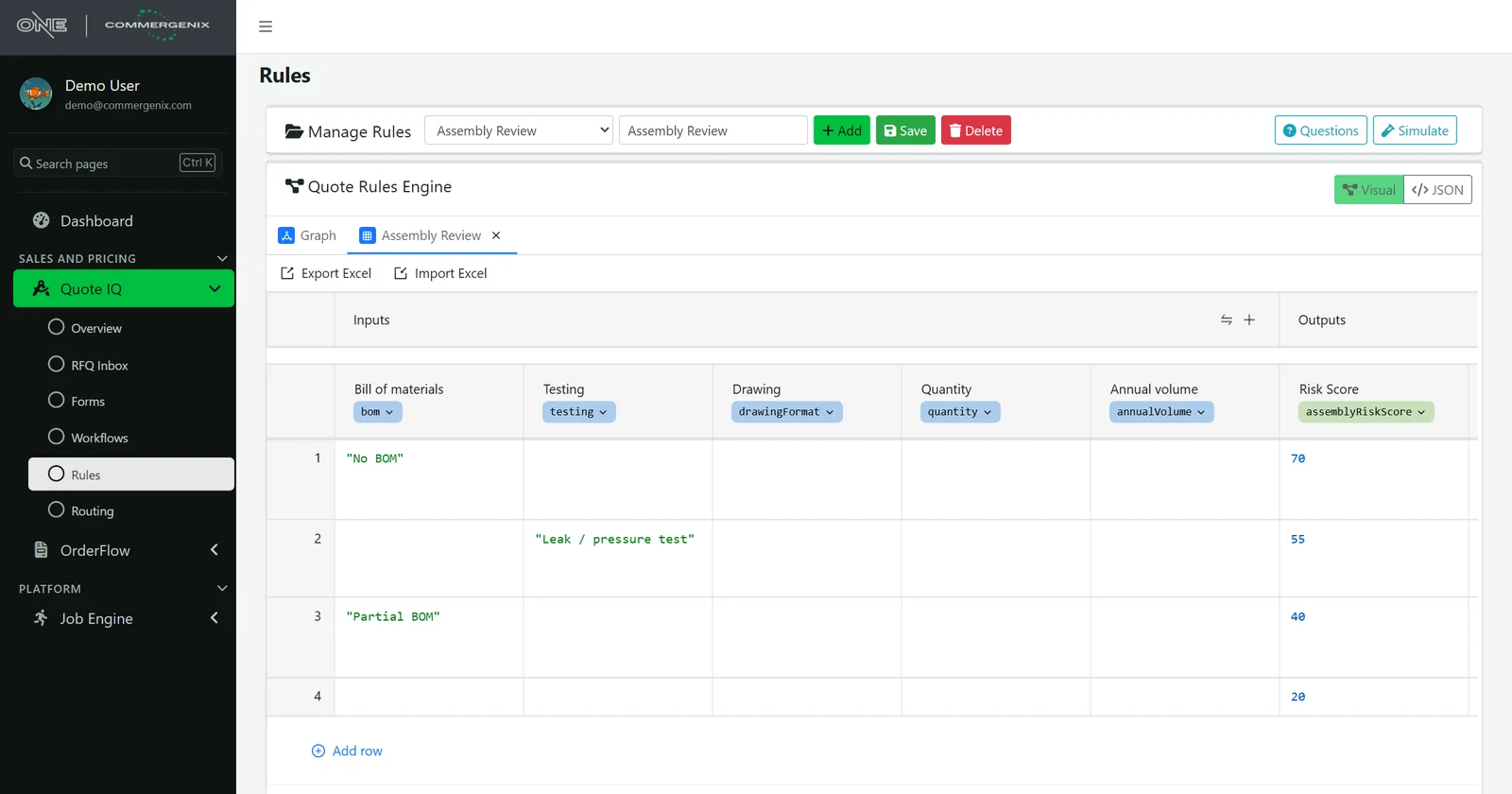
Your estimating judgment, written down.
Decision tables say what makes a job risky and who should quote it: no BOM scores 70, a leak test 55, a partial BOM 40. Edit them like a spreadsheet, or round-trip them through Excel. Each input can carry the question to ask a customer who left it blank.
- Simulate a rule against sample answers before it goes live.
- The reasons stay visible: every RFQ shows the values the rules worked out.
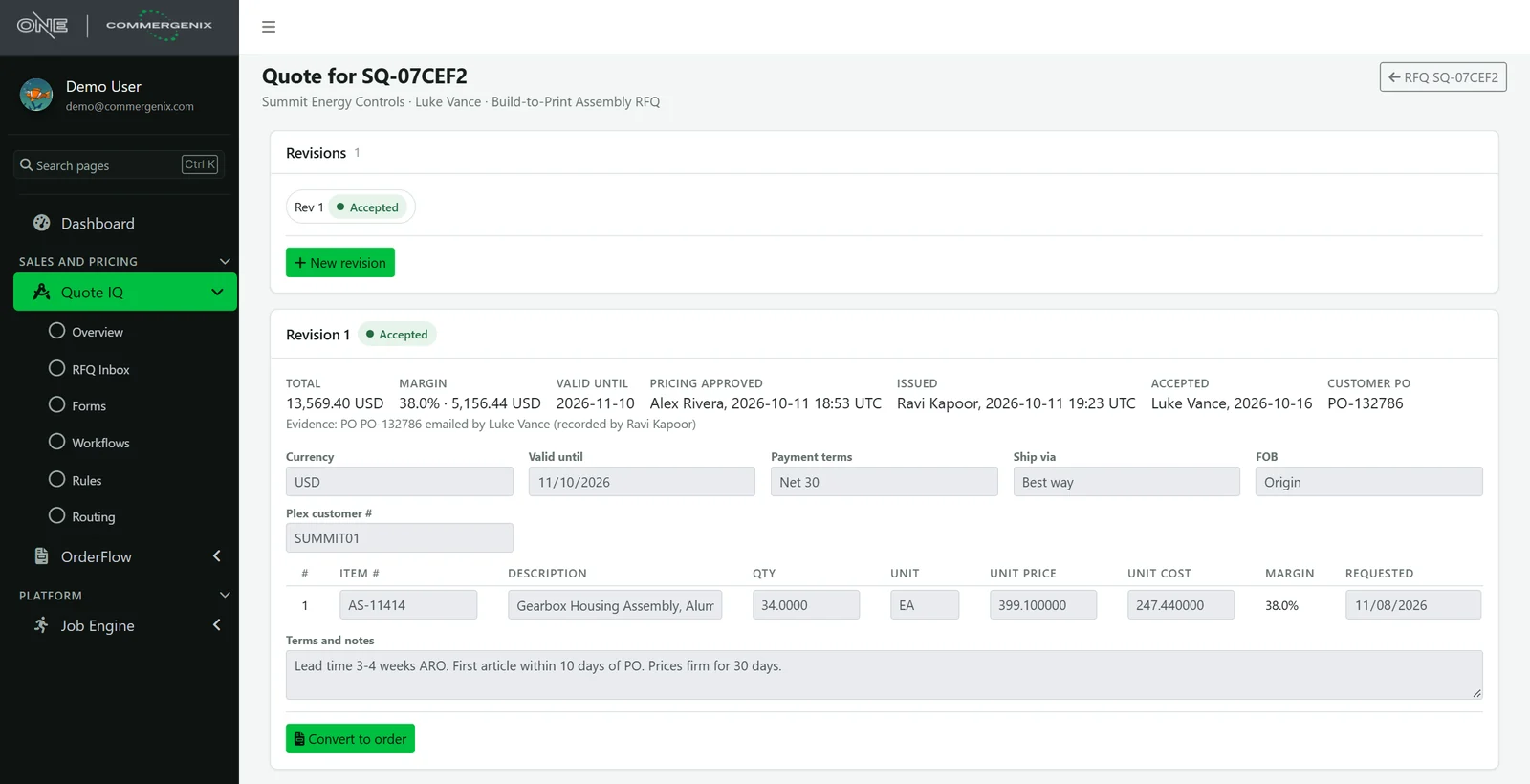
Priced, approved and sent, with the margin in view.
Build the quote from the request: lines with unit price, unit cost and margin, terms and validity. Pricing is approved before the quote is issued. When the customer’s PO arrives, record it and convert the quote into an order.
- Revisions: requote without losing what you sent before.
- Evidence kept: who approved, who issued, and how the acceptance arrived.
Quote with your ERP’s customers and parts. Order straight into it.
Quote IQ connects to the ERP you already run. While quoting, look up the customer and their parts from your ERP. When a quote is won, the order goes through OrderFlow and is placed in your ERP as a sales order, so nobody keys it twice.
 Epicor P21
 NetSuite
 Microsoft Dynamics 365 Business Central
 Infor CloudSuite Distribution
 Infor Eclipse
 Plex Smart Manufacturing
 Rubicon ERP
 e2open
AI that shows its work, people who make the calls.
Every AI value cites its source
Values read by AI are marked and shown with the customer’s words they came from, and the brief says to check it before quoting.
People price, approve and send
The workflow prepares the request; quoting, pricing approval and sending stay with your team.
A complete record
Every step, answer, note, quote revision and PO is on the RFQ’s timeline, with who did it and when.
Safe on the open web
Server-side validation, spam protection and rate limits on every public form. Webhooks are signed and only go to public addresses.
Your data stays yours
Forms, requests and quotes are kept per company and shown only to that company’s users.
AI use you can see
AI steps are metered per company, so you know what reading and summarizing requests costs.
For manufacturers who quote custom work.
Contract and job-shop manufacturers
Machined parts, assemblies, fabrication: turn website inquiries into complete, routed RFQs.
Estimators and engineers
Start every quote with the facts, a summary and a risk score, and only see the requests meant for you.
Sales leaders
See every open request, who has it and what it’s waiting on, from inquiry to won order.
Common questions
Do I have to rebuild my website?
No. The form is one script tag that you paste into an existing page. The form itself is edited in Quote IQ, so changes don’t need a web developer.
Does AI write the quote?
No. AI reads the customer’s text and summarizes the request for the estimator, showing the words each value came from. Pricing, approval and sending the quote are done by your team.
What happens when a customer leaves something out?
If your rules need it, Quote IQ asks: on the form right away, or by email with a link back to the request. The request waits in “Waiting on customer” until the answer arrives, then the workflow carries on.
Which ERPs does it connect to?
Any of the ERPs Commergenix supports, including Epicor P21, NetSuite, Business Central, Infor, Plex and Rubicon. Quote IQ uses it for customer and part lookups while quoting, and to place the sales order when a quote is won. Orders flow through Commergenix OrderFlow.
Can different kinds of work go to different people?
Yes. Workflows route each request to a queue (for example Sales, Engineering or Expedite) based on your rules, and each queue has its own notifications.
Works alongside
Every Commergenix module shares one sign-in, one job engine, and one set of integrations, so each one you add makes the others more useful.
OrderFlow
Incoming orders in one stream, checked against business rules your own admins edit, then tracked through production to shipping. Won quotes reach your ERP through it.
Learn more →Price Director
Live metal prices, including copper and aluminum, with 90-day trends and pricing rules that respond to metal costs.
Learn more →Channel IQ
Analytics across sales channels and web traffic, with configurable dashboards, scheduled reports, and plain-English questions.
Learn more →Bring us your last ten RFQs.
We’ll build a form and rules around the work you actually quote, and show you those requests the way your estimators would get them from Quote IQ.